
To migrate the print management settings between two environments, perform the following steps:
Export from the source environment
In the source environment in the Data management workspace create a new Export data project with Docentric Print Management Settings Package data entity as shown below. Specify the XML-Element Source data format. Make sure to switch the Generate data package flag ON.

Start the export (Export now or Export in batch). When you see in the Execution summary form that the export is finished, click the Download package menu item. You will get a ZIP file with the exported content, which you will use in the next step for the Import.

Import into the target environment
In the target environment in the Data management workspace create a new Import data project. Click the Add file menu button, select the Package source data format and click the Upload and add button.
When dialog opens, point to the ZIP file downloaded at the end of the export process. The information about the data entity will be loaded from the ZIP and displayed in several info and warning messages. You might get the warning messages about some missing fields in the staging table as in the image below (bug in the framework), but you can ignore them, because these fields actually exist and will be correctly recognized and used during the import.

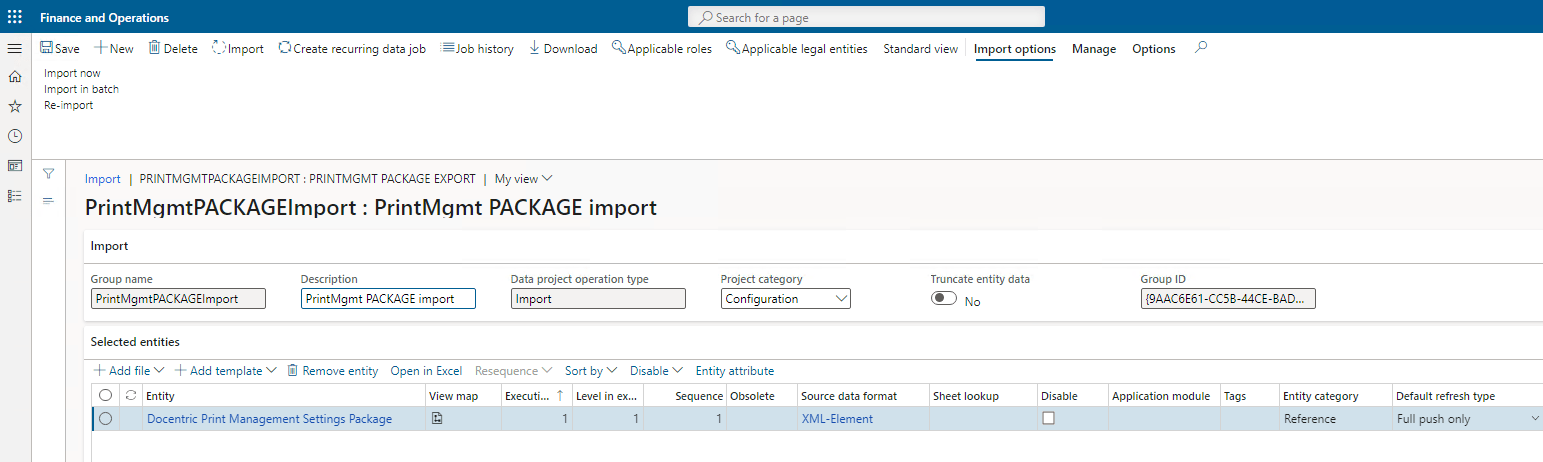
You should get the following situation in the Selected entities:
Import the data by clicking one of the Import menu items.